Creating & Enabling Discounts on Simply Cue
- Looking to boost sales with special offers? This guide walks you through how to create, activate, and manage discount codes on Simply Cue. Whether you want to offer a fixed amount off, a percentage discount, or limit usage to a specific product, this guide has you covered.
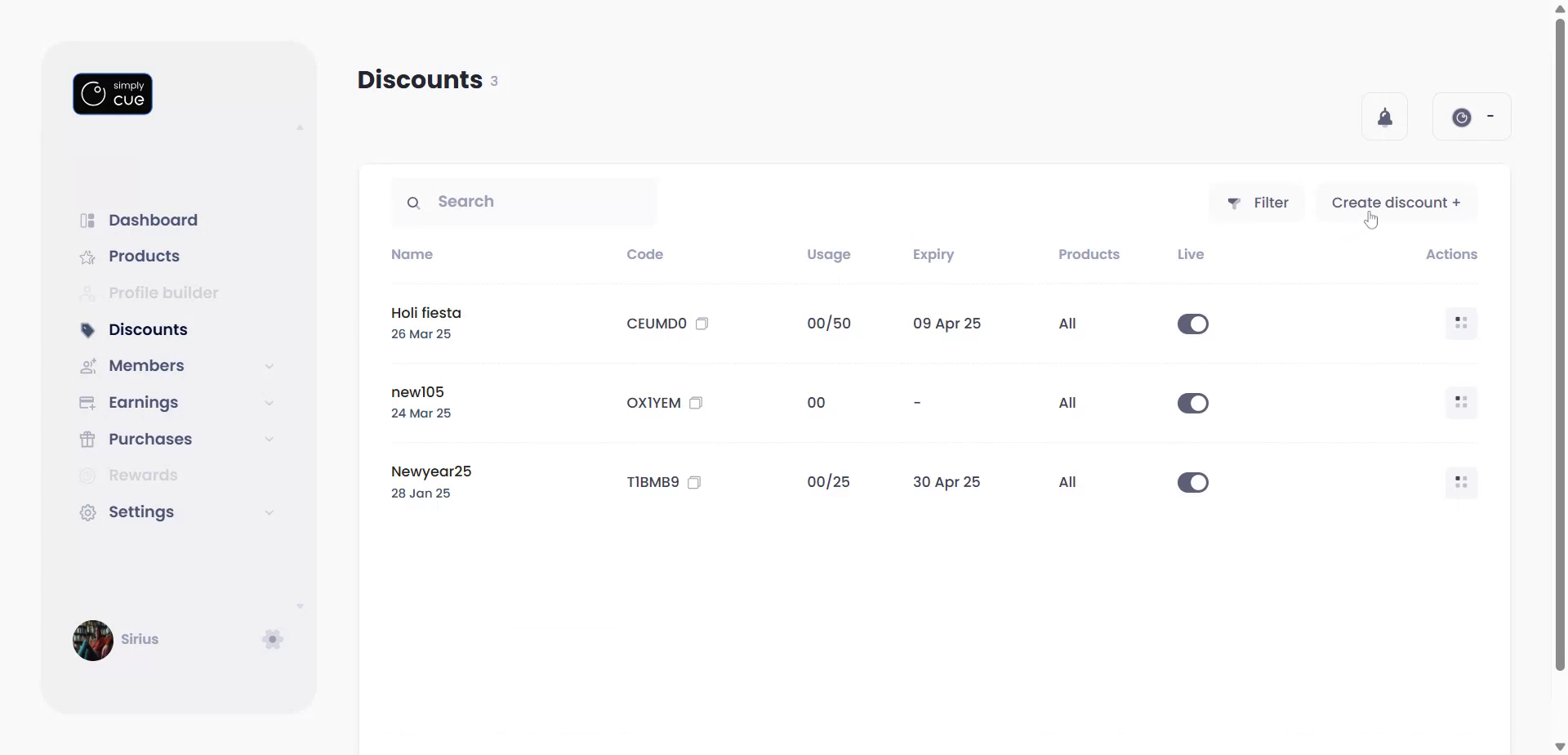
Step 1: Access the Discounts Section
- Log in to your Simply Cue dashboard.
- From the left-hand menu, click on Discounts.
- Click the Create Discount button on the top right of the discount screen.
Step 2: Set Up Your Discount
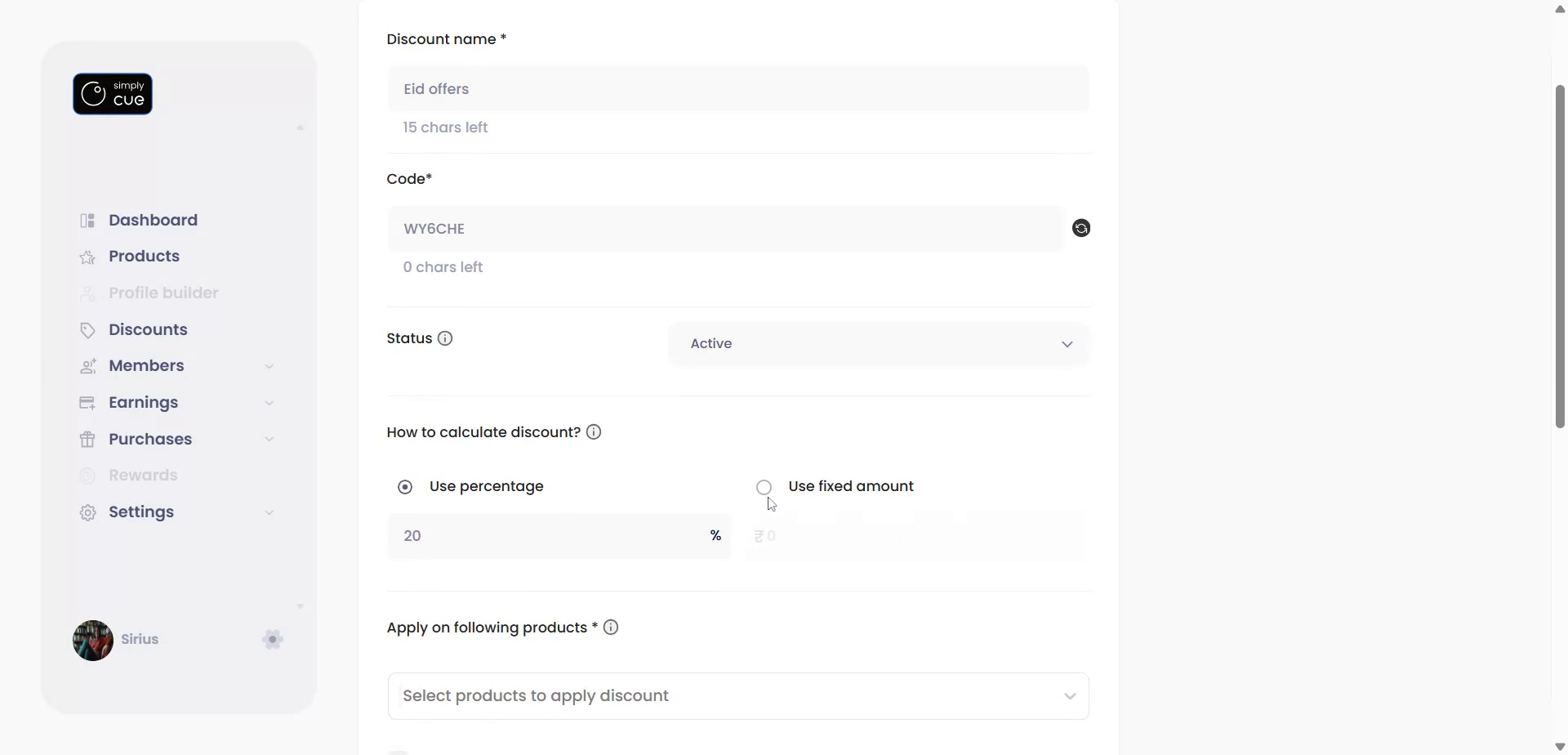
- Name your discount for internal reference.
- Generate a discount code.
Tip: You can click regenerate to get a new random code if needed. Or Type in your own special 6 characters code e.g. ISHA25. - Enable or disable the discount status as needed with the dropdown.
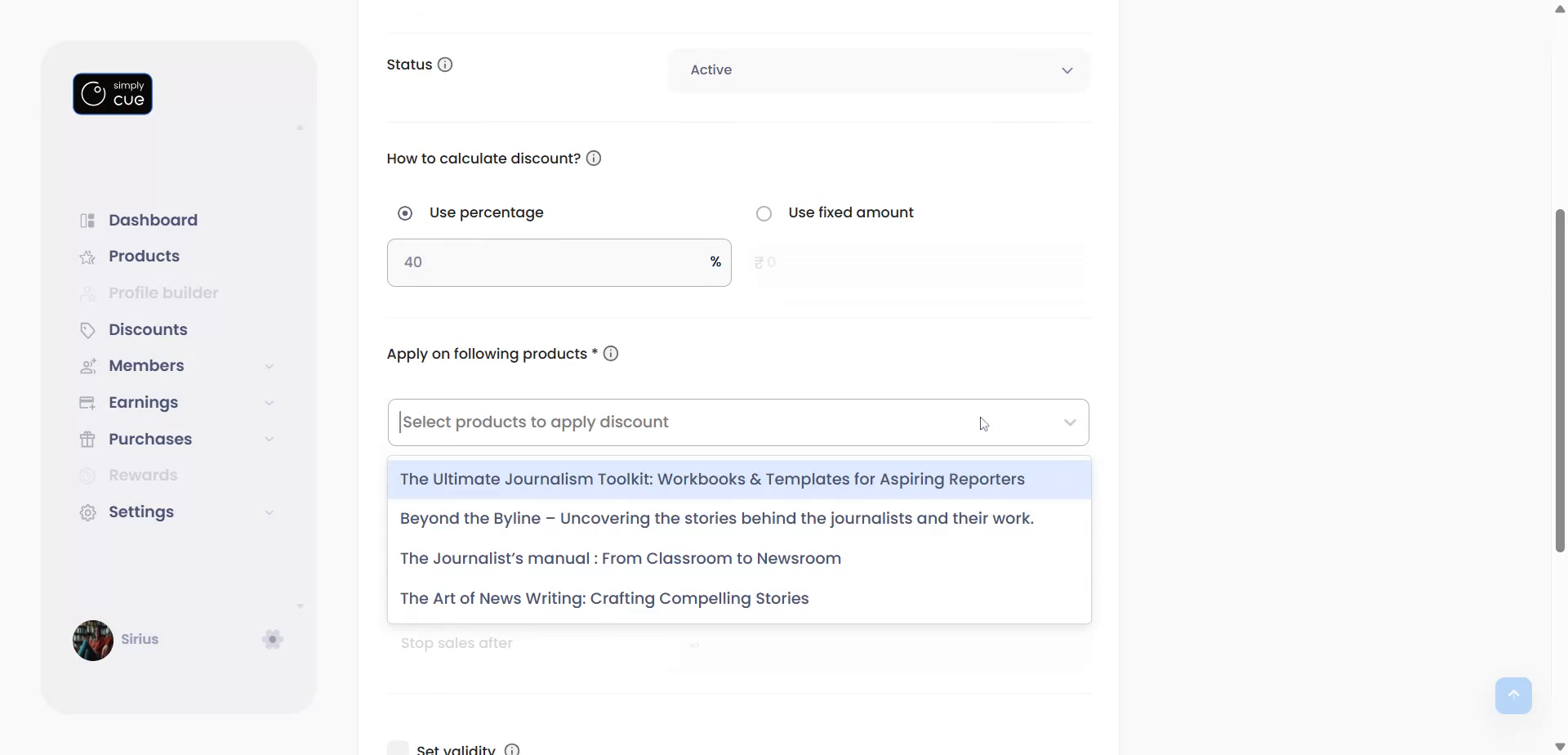
- Choose one of the two options for the discount calculation , Percentage-Based Discount (e.g., 20% off) OR Fixed Amount Discount (e.g., ₹200 off)
- Select how the discount should be applied: To specific products, OR Check “Apply to all products” to make it universal.
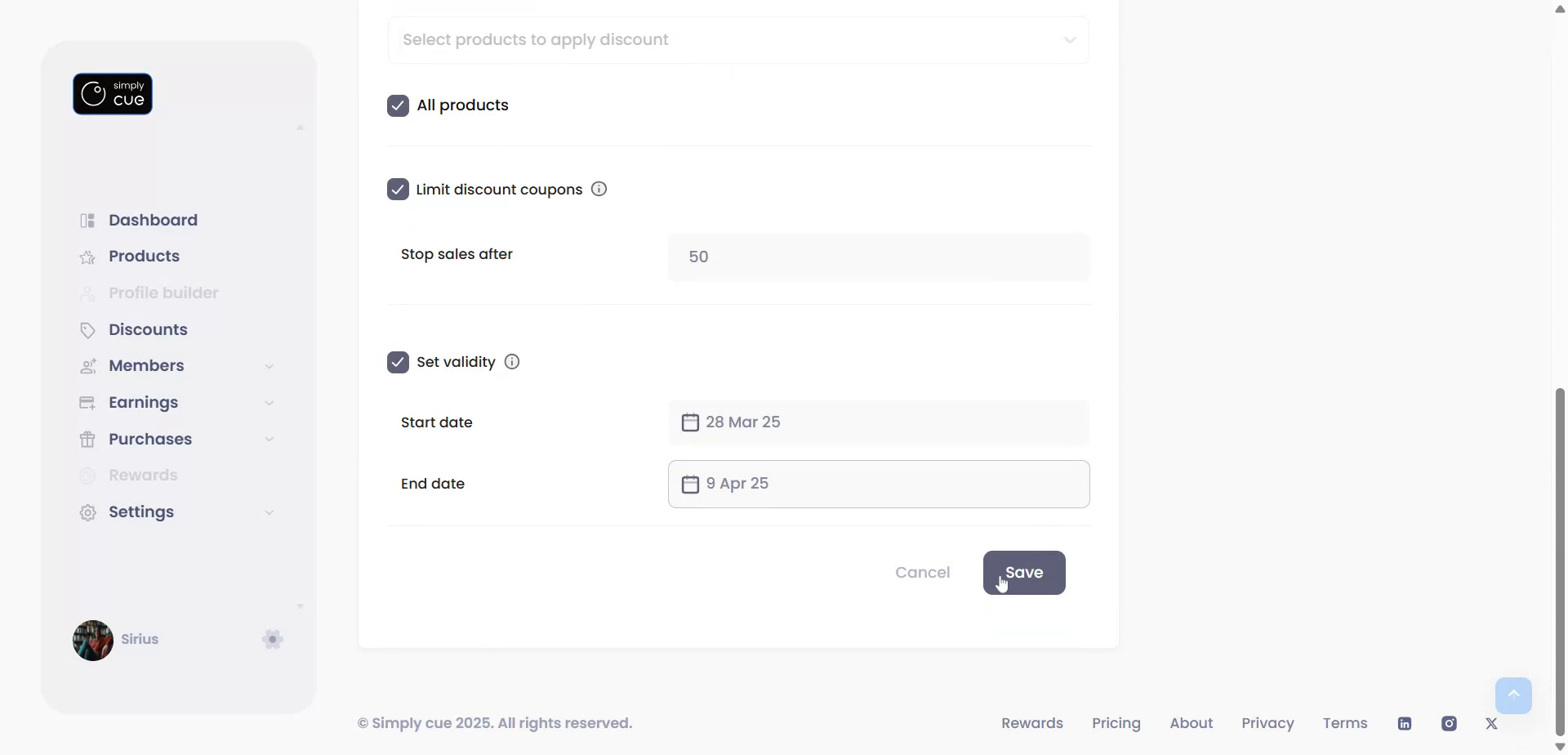
Usage Limit: Set how many times the coupon can be used (e.g., 50 uses).
Validity Period: Define start and end dates for the coupon to stay active.
Step 3: Save & Activate
- Review all fields.
- Click Save to create the discount.
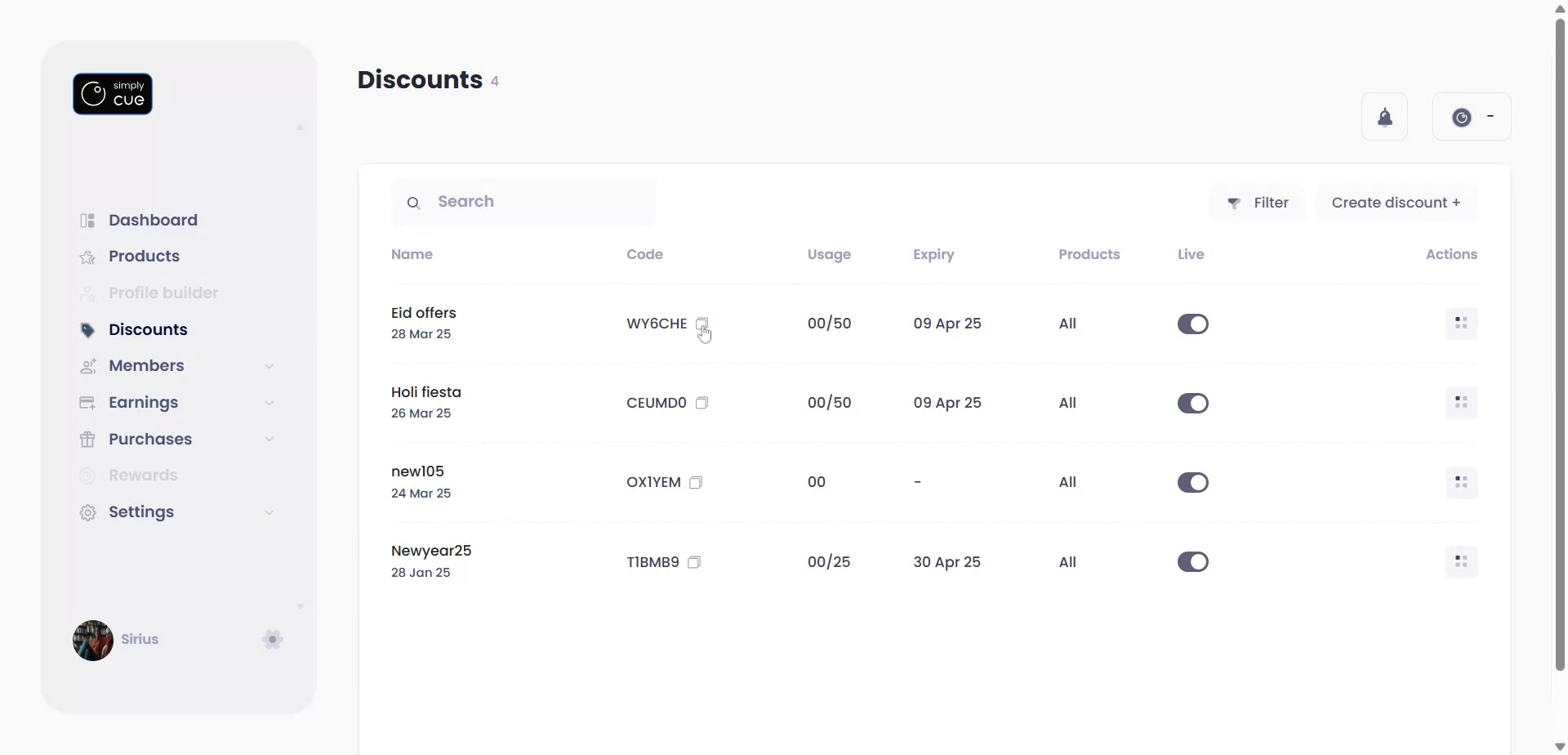
And Voila! You now have a discount code you can share with your audience.
Step 4: Make It Visible at Checkout
To make sure the discount code field appears at checkout:
- Go to Product Listing from the left menu.
- Select the relevant product and scroll to the Pricing section.
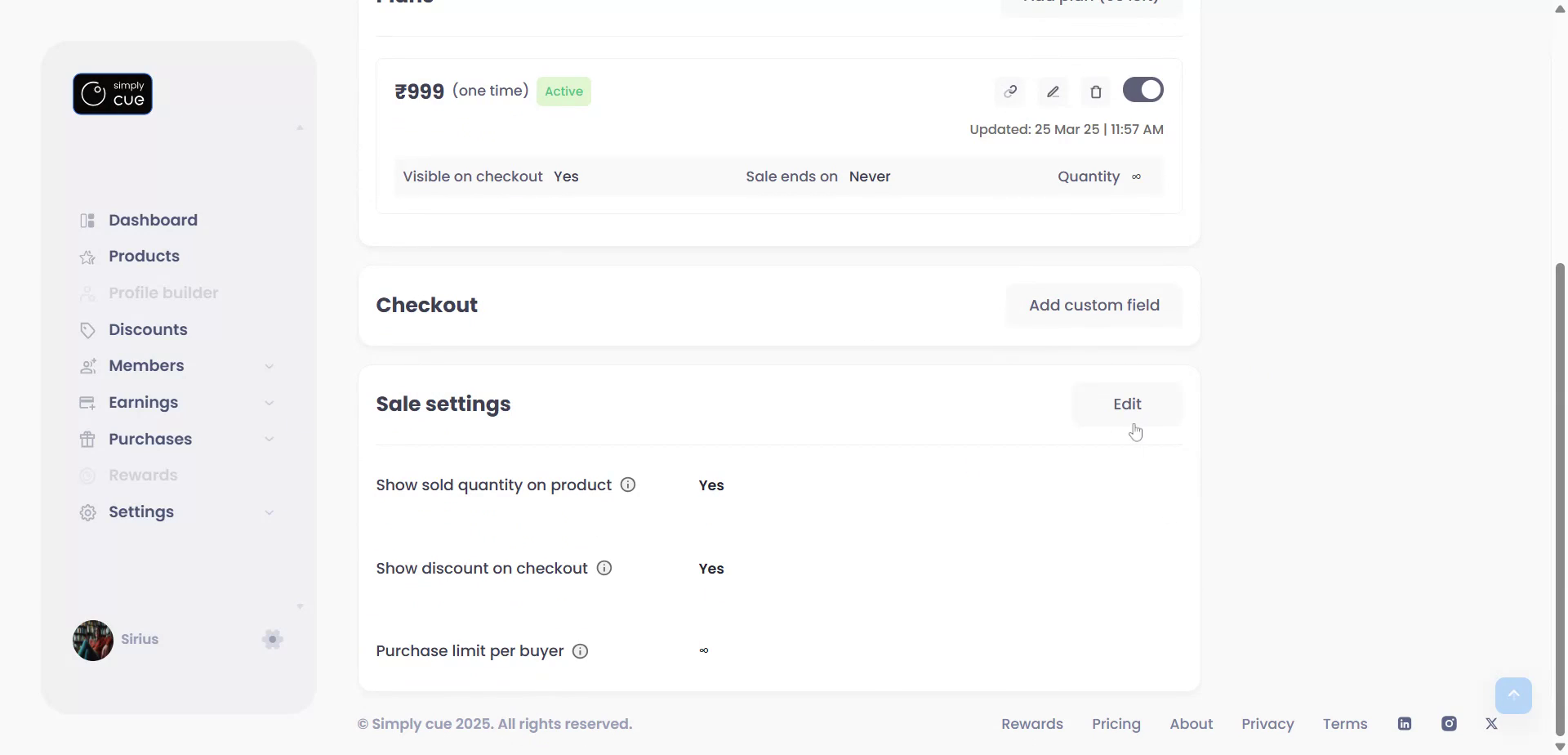
- Under the Sale Settings tab, click Edit.
- Ensure “Show discount at checkout” is toggled to Yes.
- Click Save.
Step 5: Test the Experience
- Use the Preview option to test your checkout flow.
- On your public product page, members will now see a “Discount Code” input box.
- When members enter the code and click Apply, the discount will be automatically calculated.
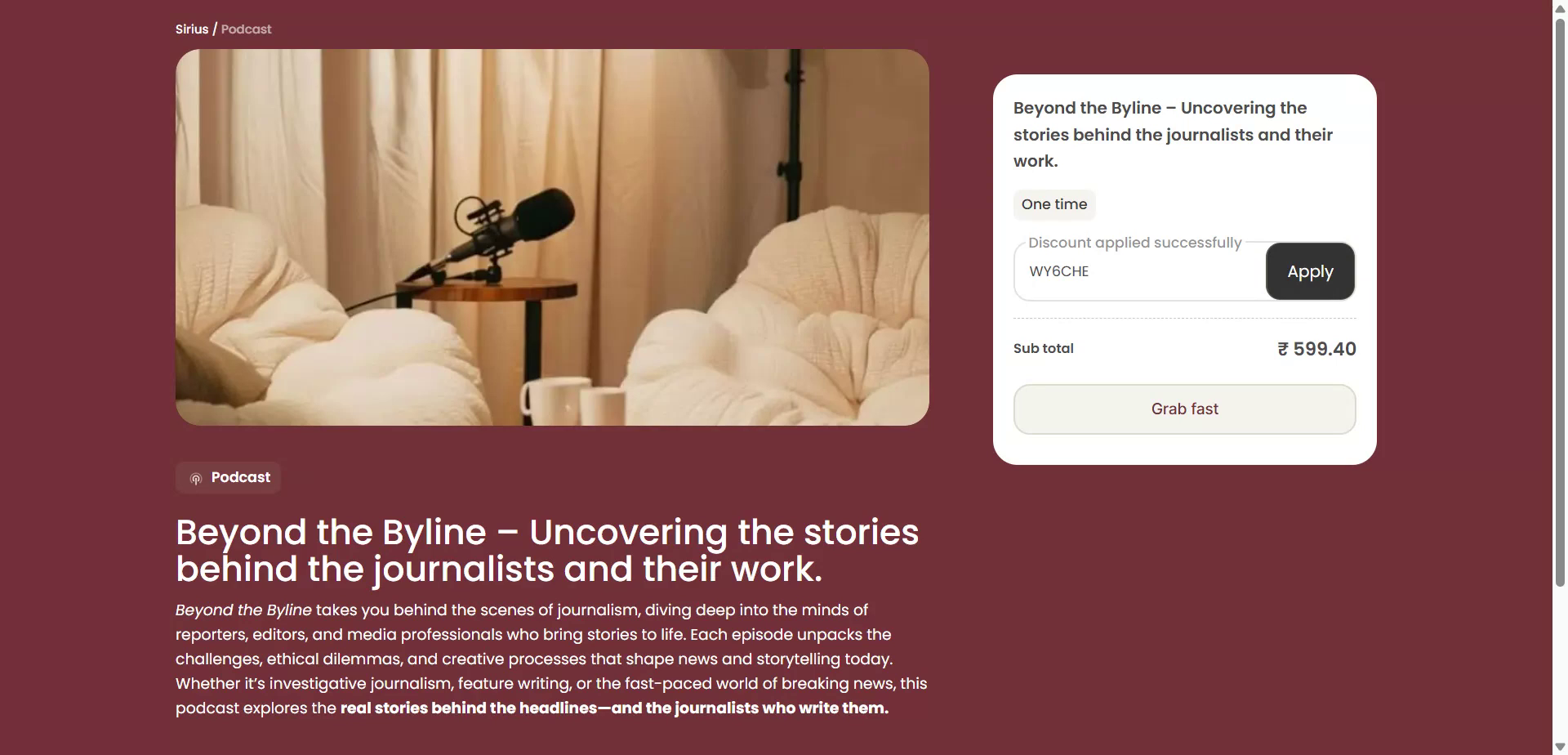
That’s it! You’ve successfully created and activated a discount in Simply Cue.
If you want to learn more about promoting products or creating urgency with limited-time sales, check out our other guides or reach out to support.


