
Setting Up Your Invoice Page
This document outlines a simple, step-by-step process for setting up your invoice page on Simply Cue. Following these instructions ensures professional and transparent transactions with your members (customers).
Step 1: Access Invoice Page
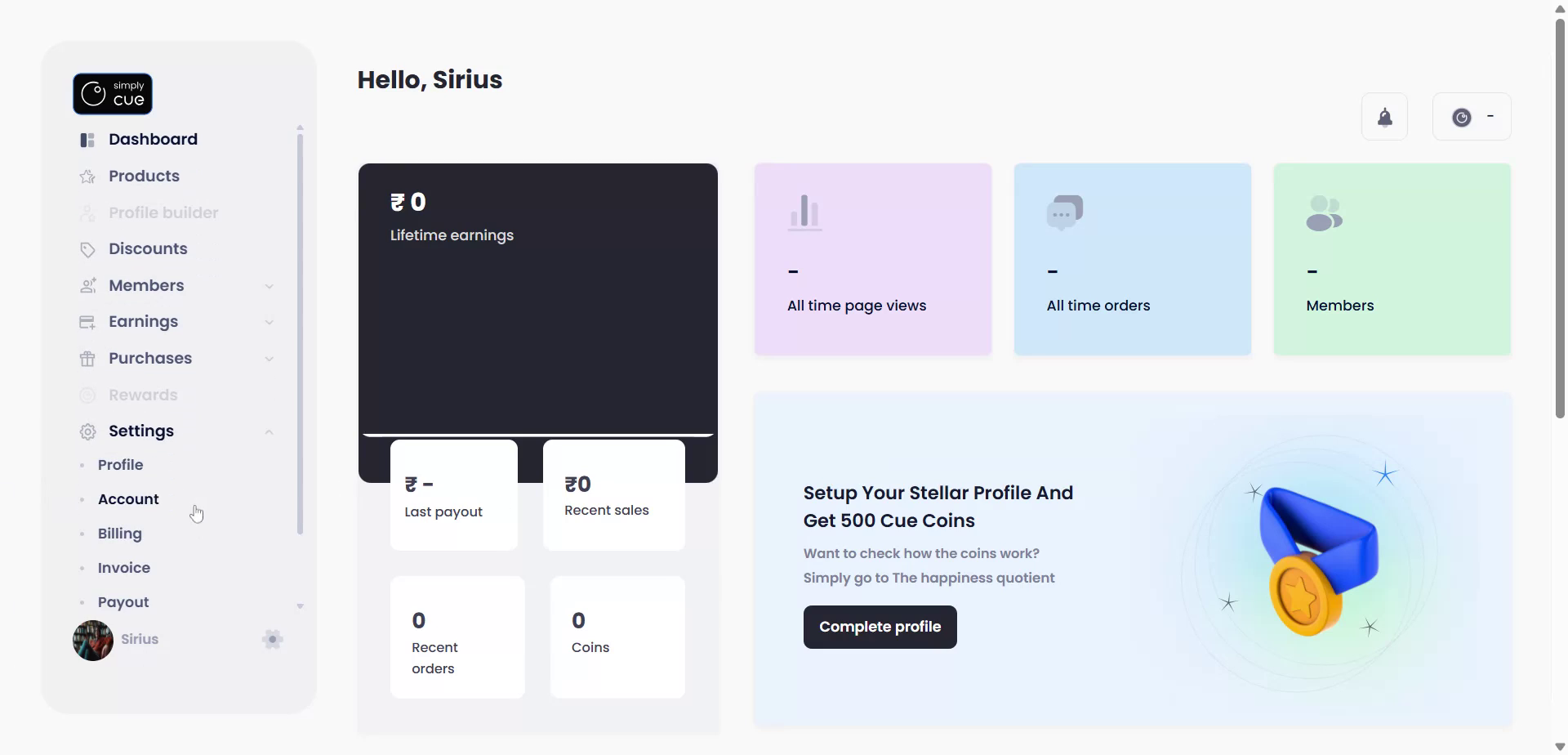
Begin by logging into your Simply Cue account. From the left-hand menu, click Settings, then select Invoice to access your invoice configuration page.
Step 2
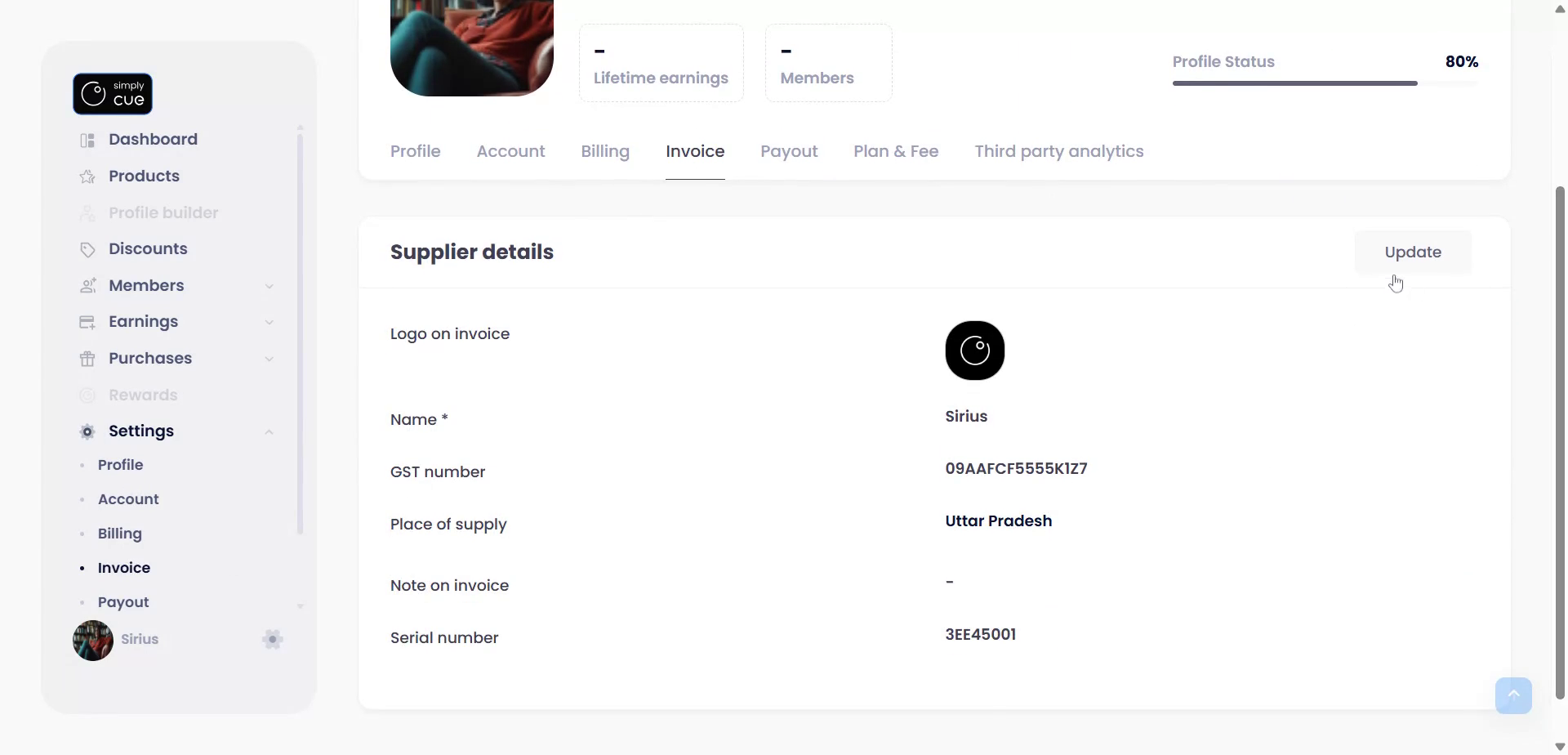
Within the Supplier Details section, click the Update button on the right to begin entering your business details.
Step 3
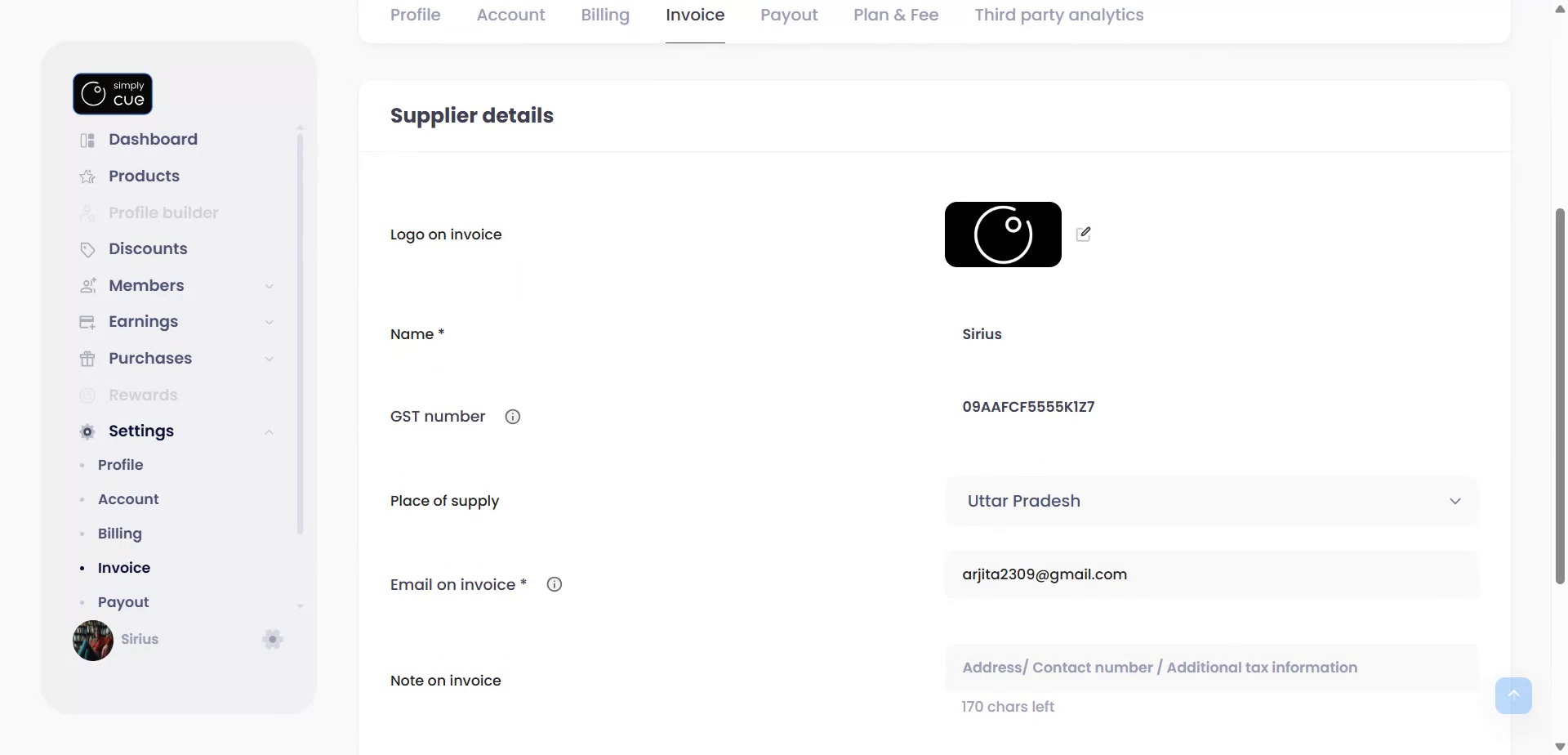
Fill in the supplier details. These include
- Your brand logo
- Your professional brand name or business name.
- The GST number (which will be filled under the billing tab).
- The place of supply.
- And a note for your invoice. (This note might include your address, contact number, or any additional tax information to keep transactions transparent with your customers.)
- Cue auto-generates a serial number for each invoice to ensure consistency and compliance.
Review the details and when satisfied, click Save Changes.
Your invoice page is now ready. This setup ensures a streamlined, professional billing experience for you and your members. Need to make changes later? No problem. You can return any time to update your information.


