
Adding Episodes to Your Podcast or Web Series on Simply Cue

This document provides a comprehensive overview of the process to seamlessly add episodes to your podcast or web series using Simply Cue. From navigating through the products page to publishing your episode, follow these clear and concise steps to enhance your podcast creation experience.
Step 1: Select Your Product
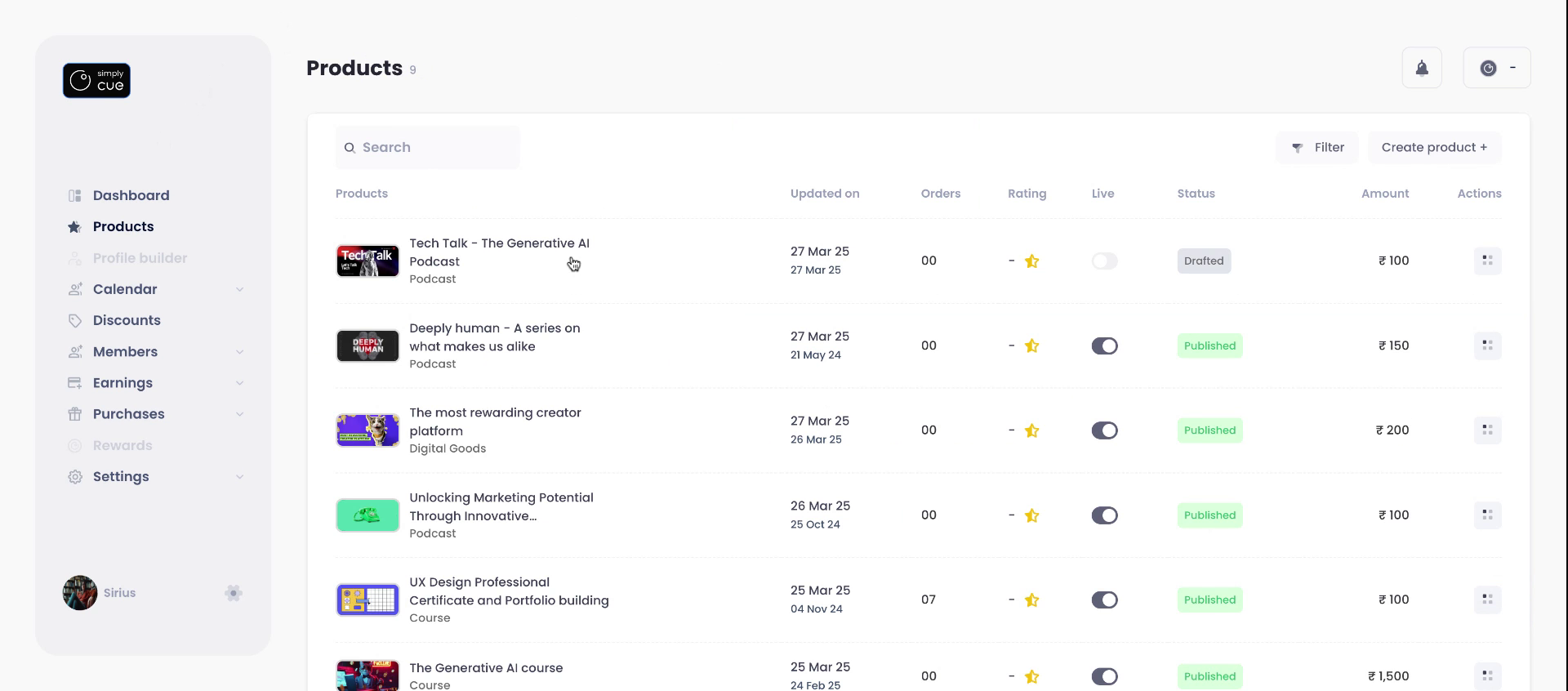
Begin by navigating to the Products page within the navigation bar.
Select the product (podcast or web series) to which you would like to add an episode.
Step 2: Open the Episode Builder
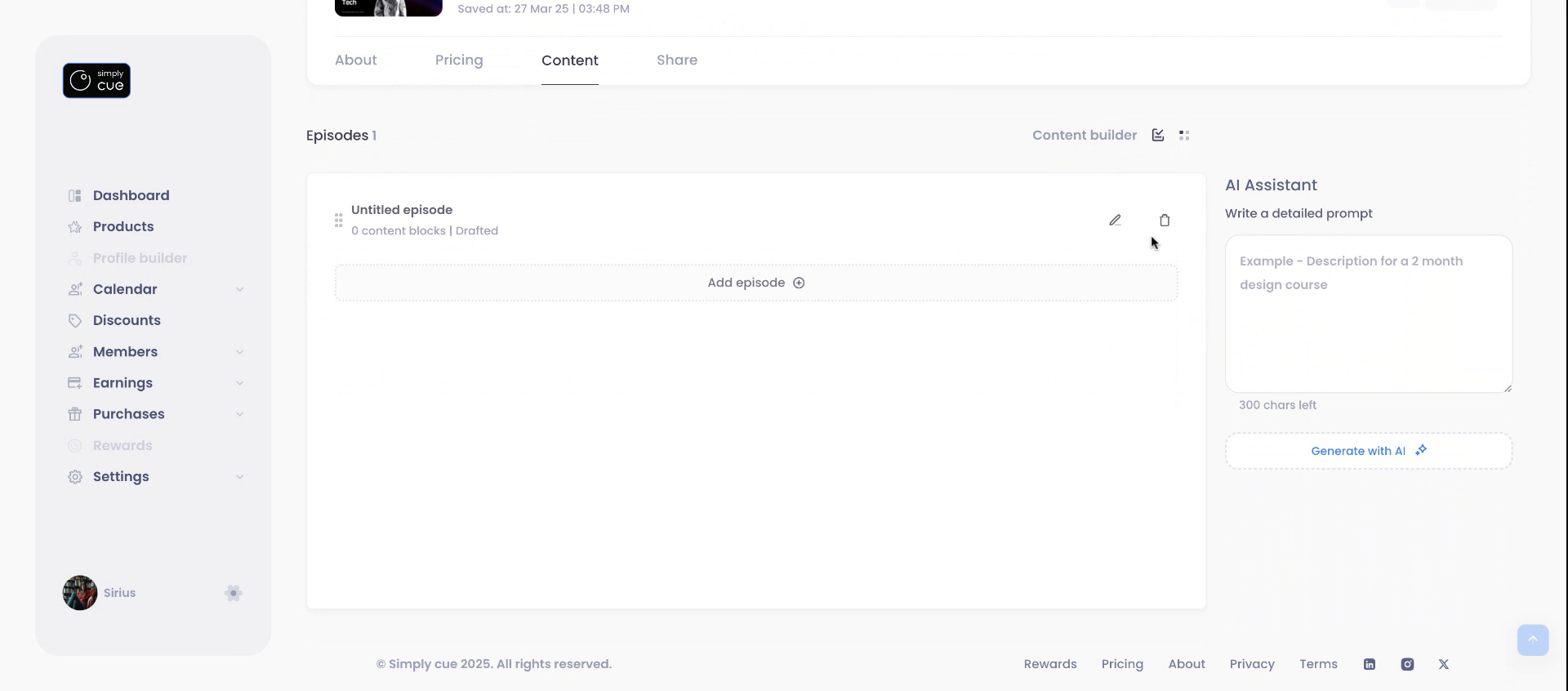
- Click on the Content tab of your selected product.
- You will be redirected to the Episode Builder page.
- Here, you can manually add episodes to the content outline.
Step 3: Create or Generate an Outline
You have two options:
- Manual: Write and add your episode outline from scratch.
- AI Assistant: Prompt AI to generate an outline instantly, then review and modify it as needed.
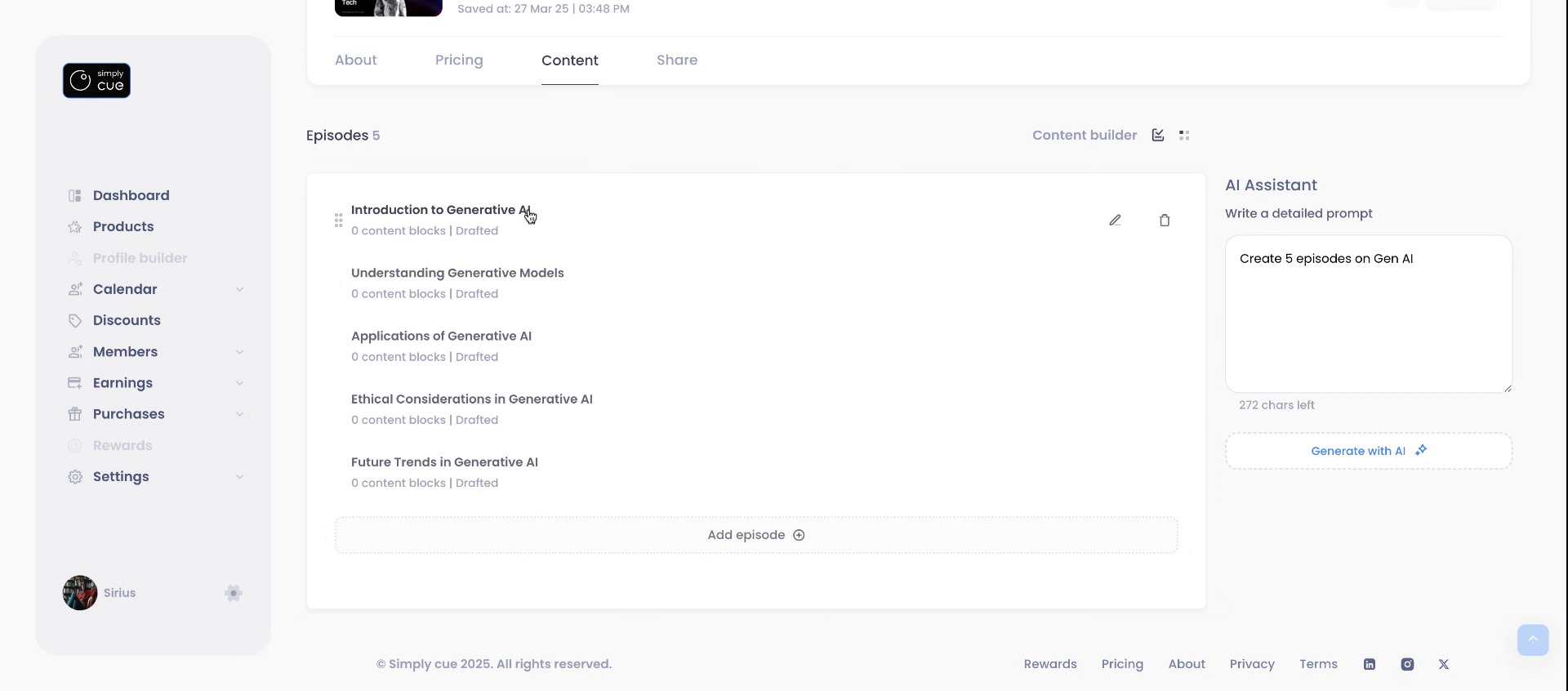
- Once satisfied, select the episode you want to develop and begin adding your content.
Step 4: Add Episode Details
For each episode:
- Enter a clear and catchy title
- Write a compelling description aligned with your theme
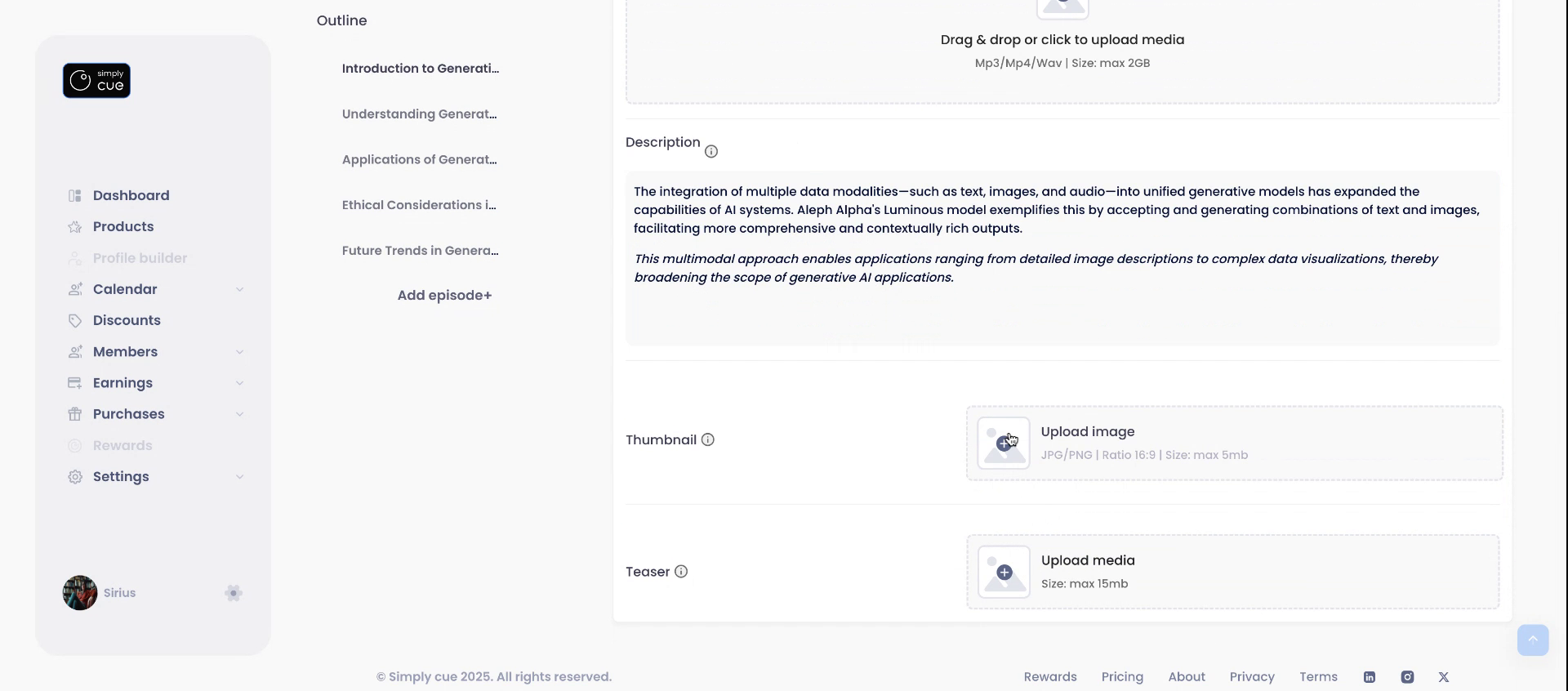
- Upload a thumbnail image to represent the episode
- Upload the audio or video file (make sure it’s properly named)
Step 5: Save & Publish
Wait for the media to process.
- Once complete, click “Save” to save the created episode
- Then click “Publish”. Your episode will now be live, and members will be able to access it immediately.
Note: Any edits you make after publishing are updated instantly for members.
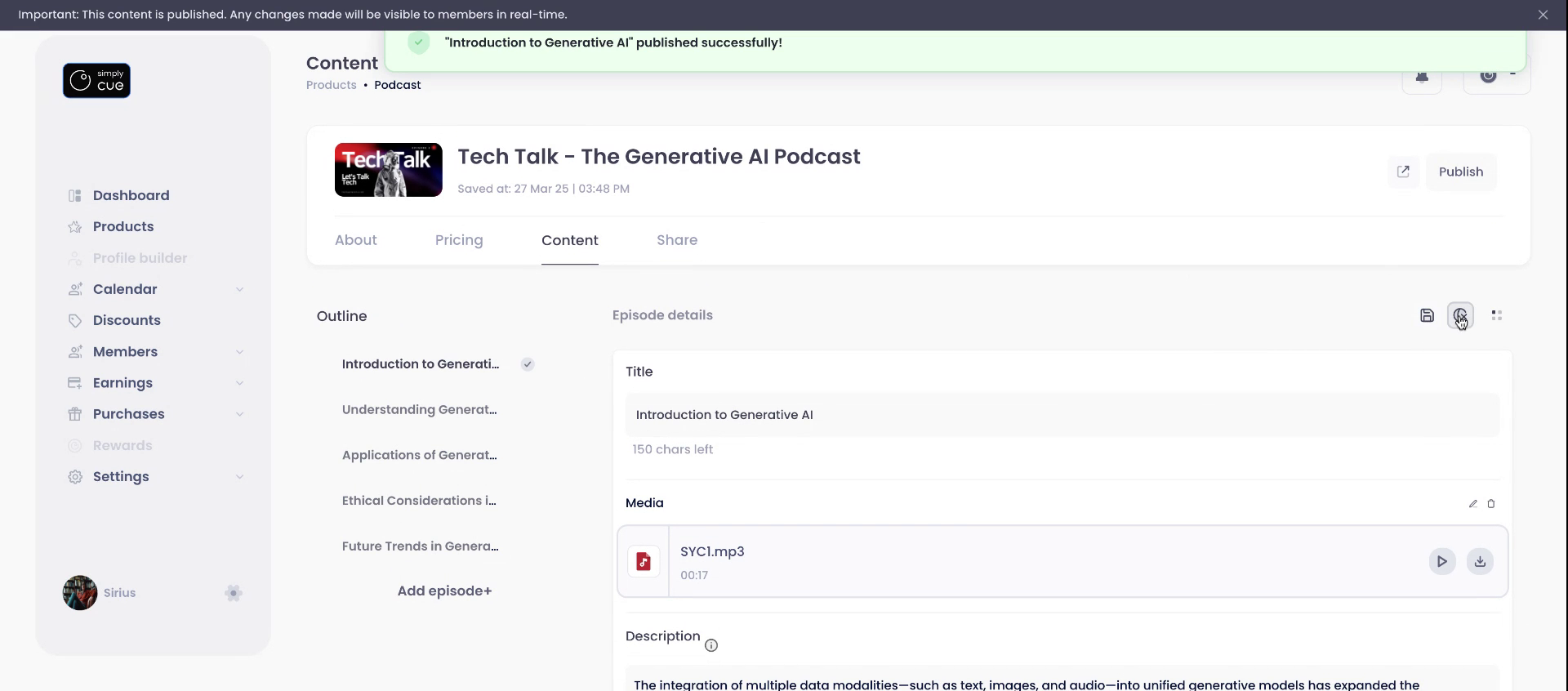
Step 6: Preview Your Episode
Click on “Preview” It will open the member’s view in a new tab. Experience the episode exactly as your members will. A gray tick will confirm successful publication.
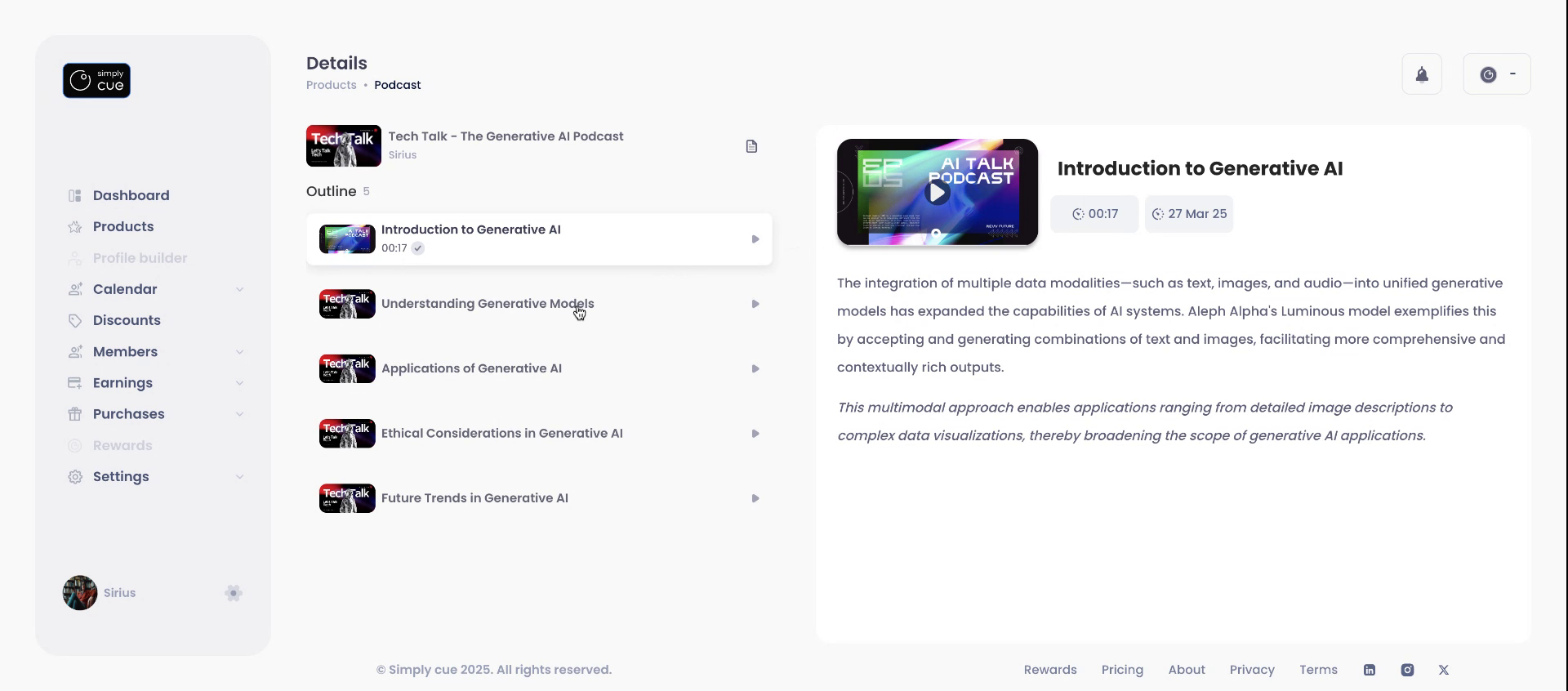
With these simple steps, your podcast or web series can grow episode by episode, delivering engaging content to your audience effortlessly on Simply Cue.
Happy podcasting!


