Adding Content to Your Products on Simply Cue
Ready to upload course material or digital content? This guide helps you add and manage content for any product be it a course or digital goods.
This step-by-step guide walks you through the product listing page, using the content builder, adding chapters with AI assistance and uploading various content types such as text, audio, video and documents. You’ll also learn how to publish your content so members can access it.
Step 1: Open Your Product
From the left-hand side menu, go to the Product Listing page.
Select and open the product you want to work on.
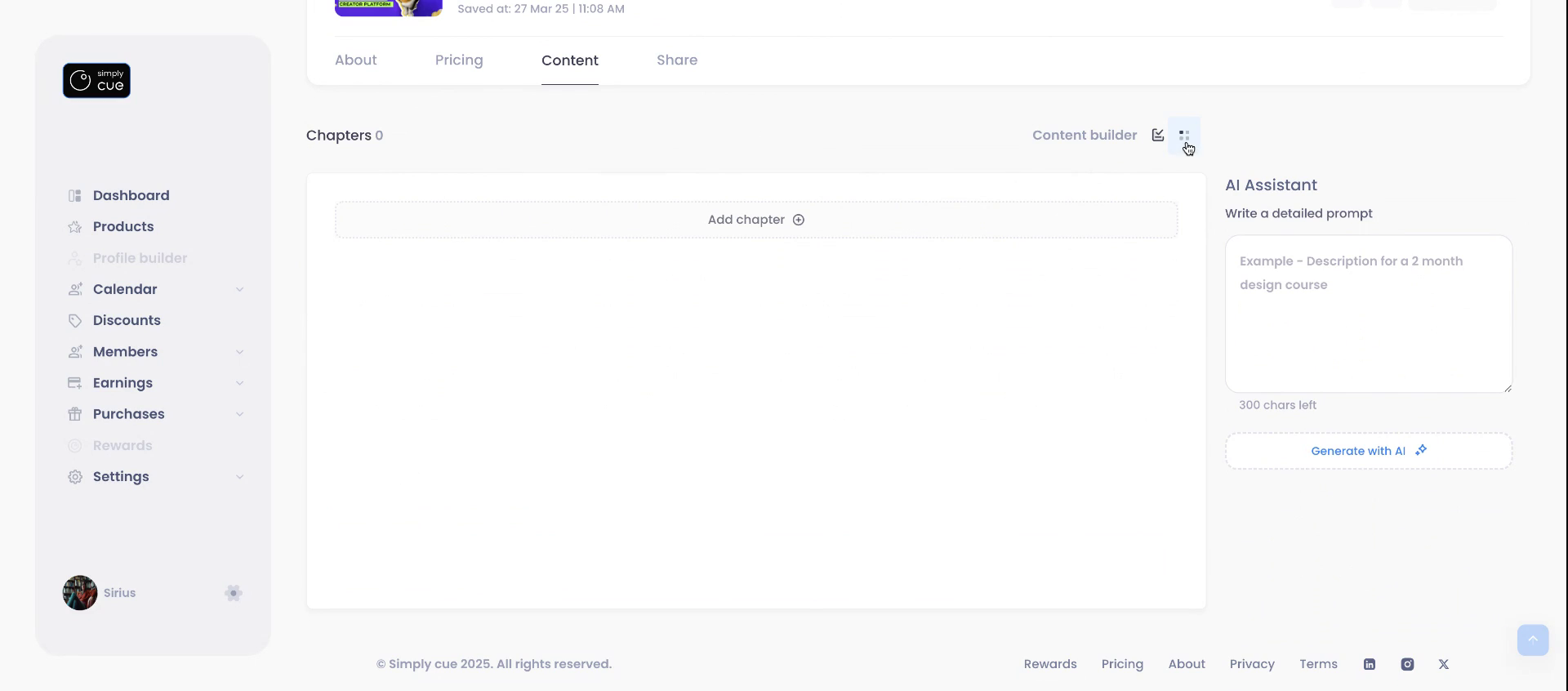
Then go to the Content tab — this is where the magic happens!
Step 2: Use the Content Builder
The Content Builder works the same for courses and digital goods. Here’s what you can do:
- Add new chapters (manually or with a little help from AI)
- Preview content
- Publish or unpublish chapters
- Delete or reorganize content
- Edit anytime
Step 3: Add Chapters Manually or with AI assistance
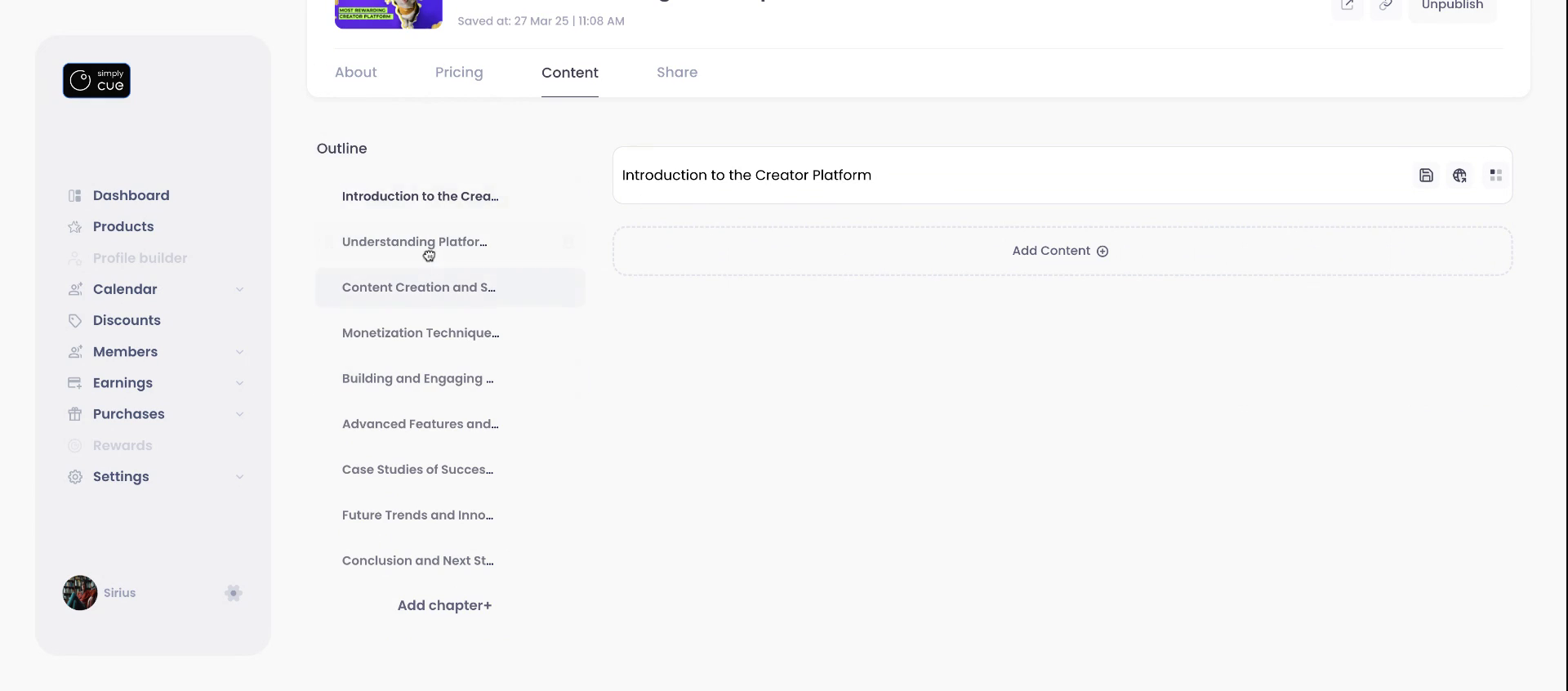
Start From Scratch – Click “Add Chapter” to manually create chapters with custom titles.
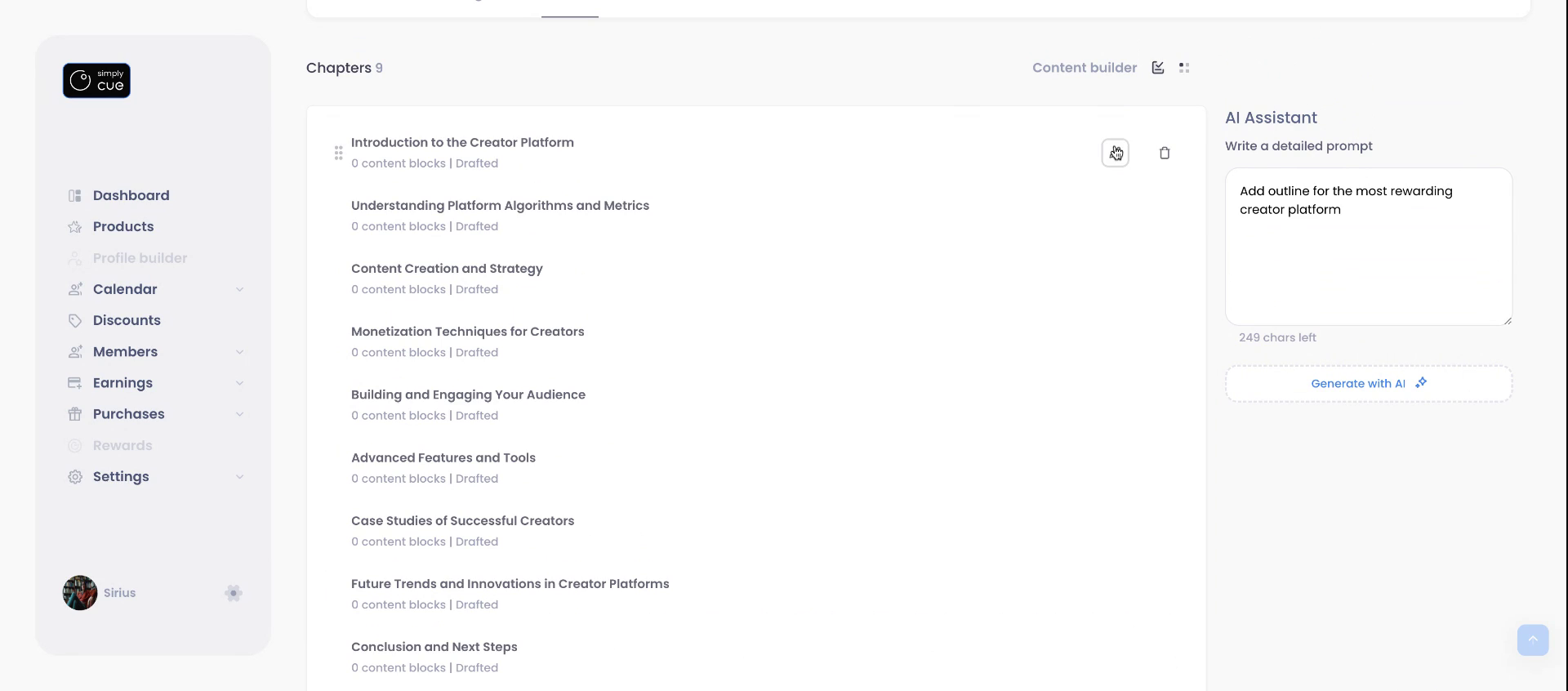
Use AI Assistance – Instantly generate a chapter outline by giving a prompt to the AI.
Once a chapter is added, the outline appears on the left, and you can start editing content on the right.
Step 4: Add Your Content
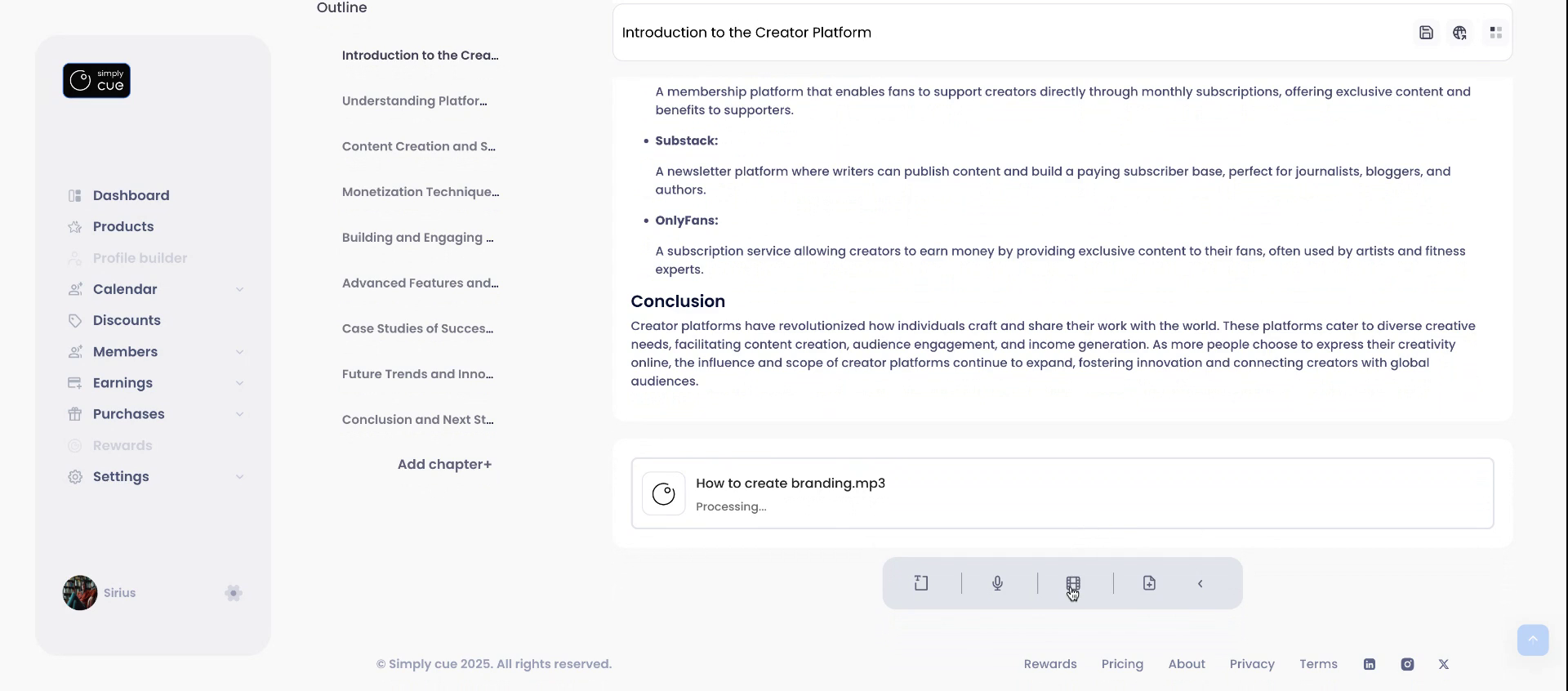
Each chapter can include up to four types of content:
- Text & Image – Use the rich text editor to write or paste content (you can drag and drop images too!)
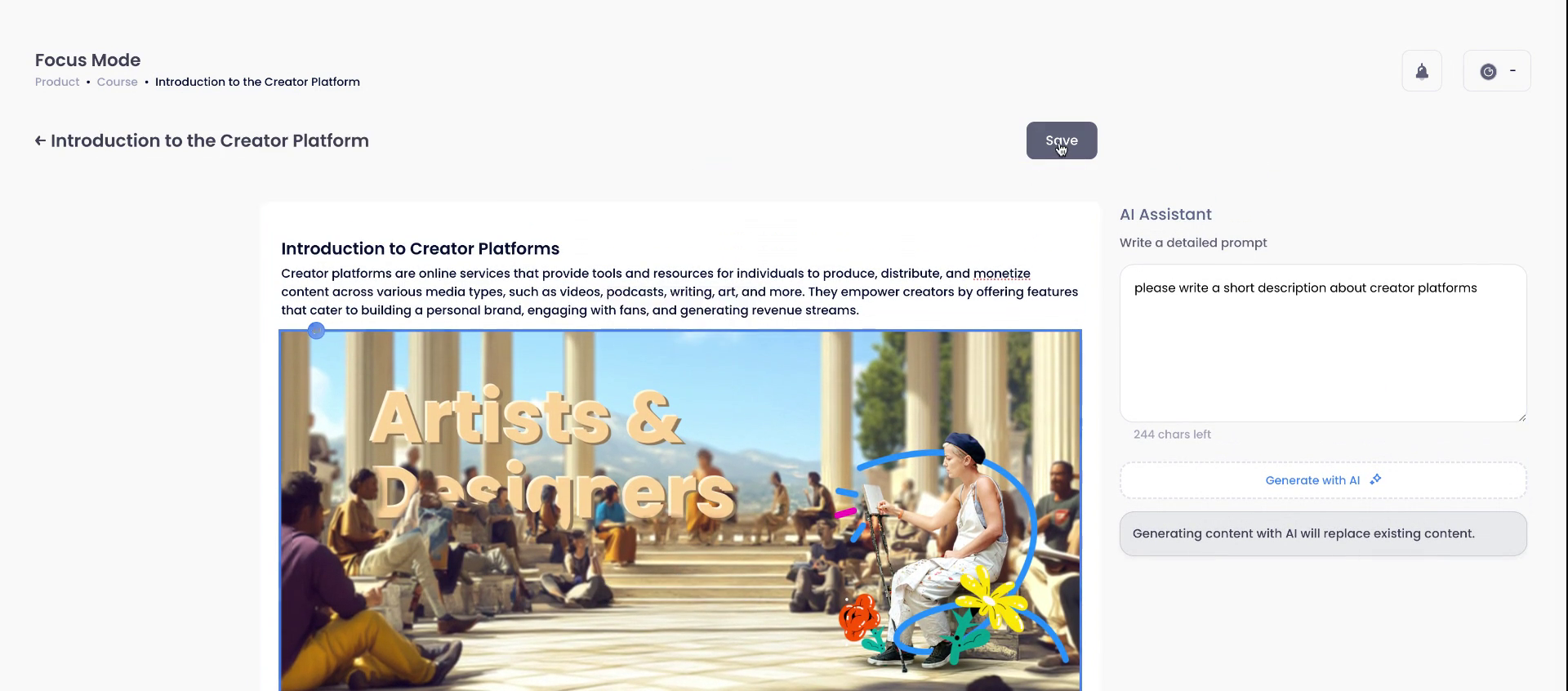
- Audio – Upload audio files, you can add proper names and descriptions. Rename the file. Add a short description. Set download permissions for members
- Video – Add engaging videos. You can rearrange their order anytime
- Documents – Upload files, give them a short description and set download permissions
Once everything looks good to you, click Save.
Step 5: Organize & Preview
Want to modify the flow? You can drag and drop to rearrange content blocks within each chapter.
When you are ready, click Publish to make the chapter live. A label will confirm its visibility to members.
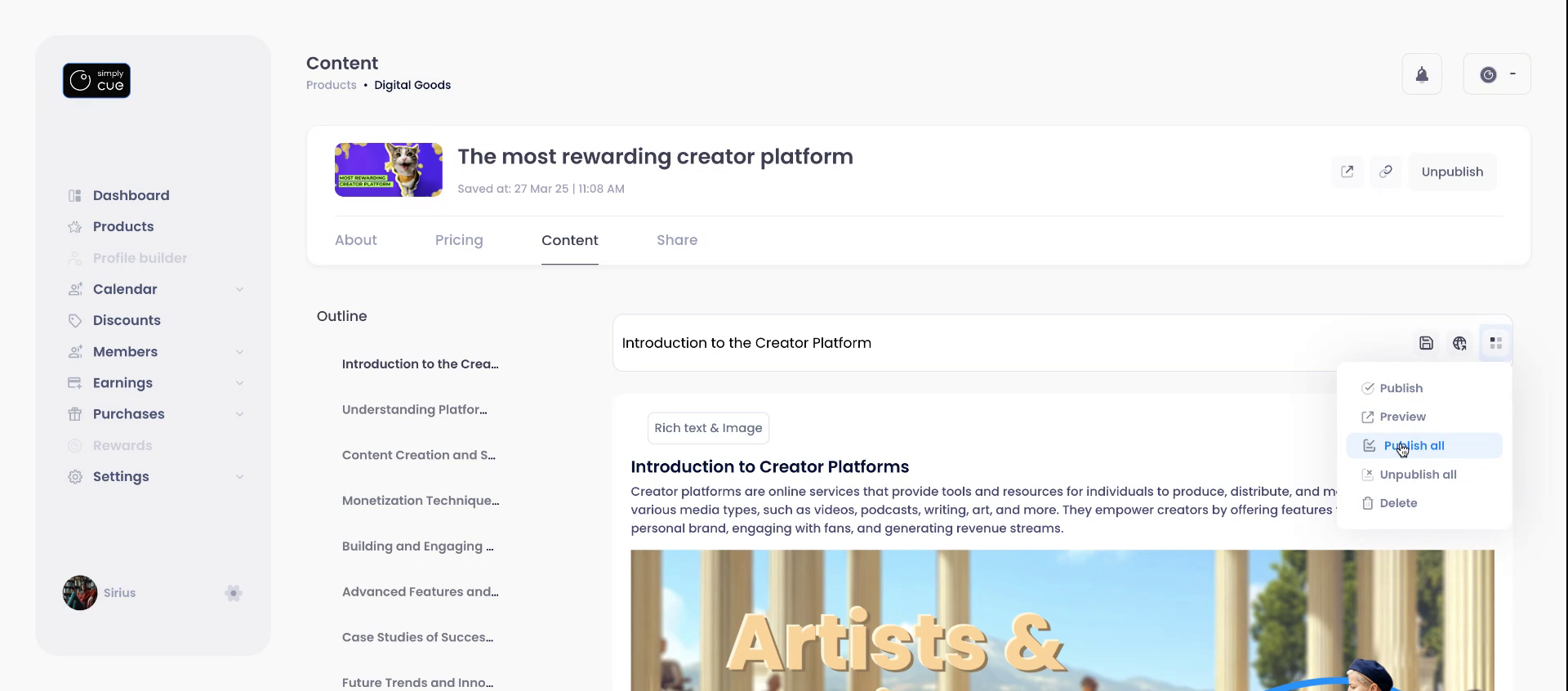
Use the Preview button to see how your content appears from a member’s perspective.
Unpublished chapters appear without the label.
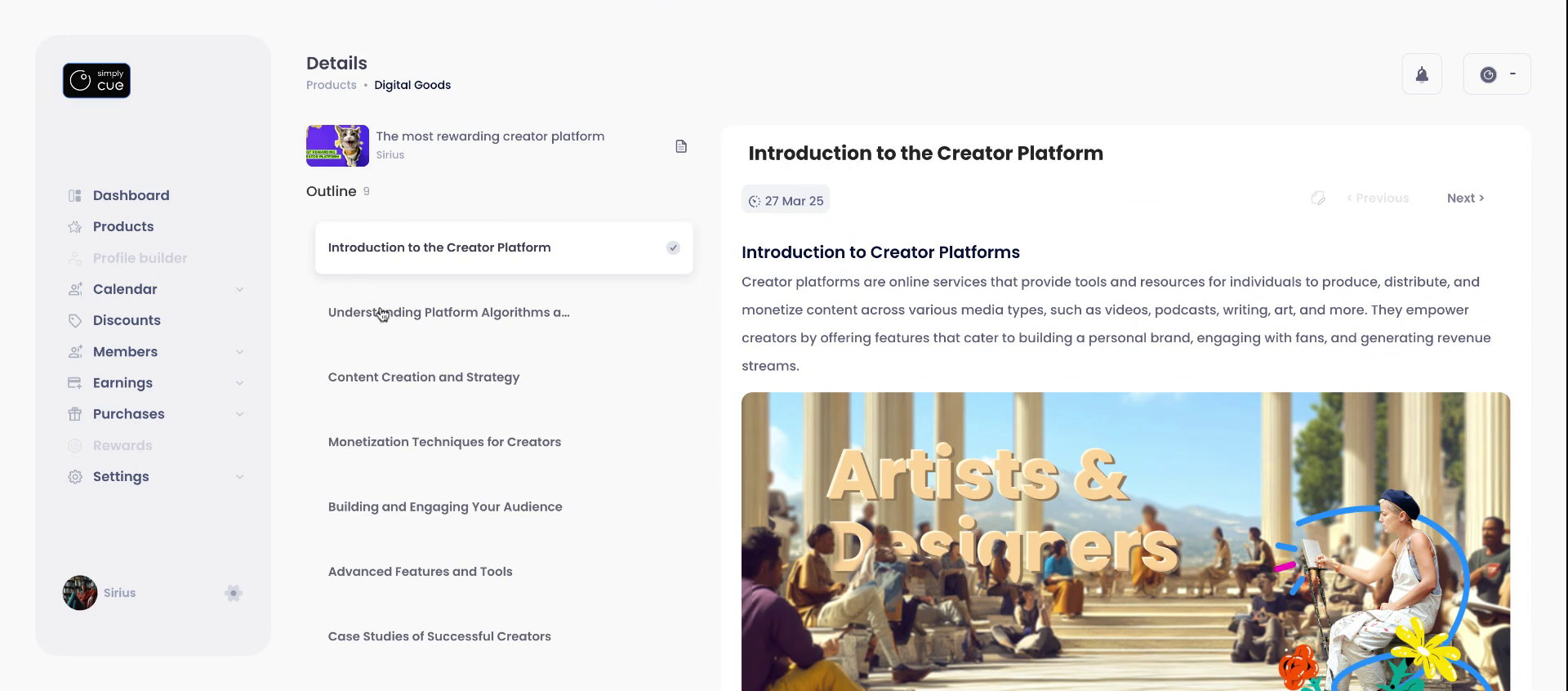
You can always return to edit the outline and add more content. Happy creating!


