Setting Up Your Profile on Simply Cue
Your Simply Cue profile is your creator identity on this platform. It is a place to showcase your skills, connect with your community and build trust with real feedback. Here’s how to set it up in just a few steps:
Step 1: Go to Profile Settings
Once you are logged into Simply Cue:
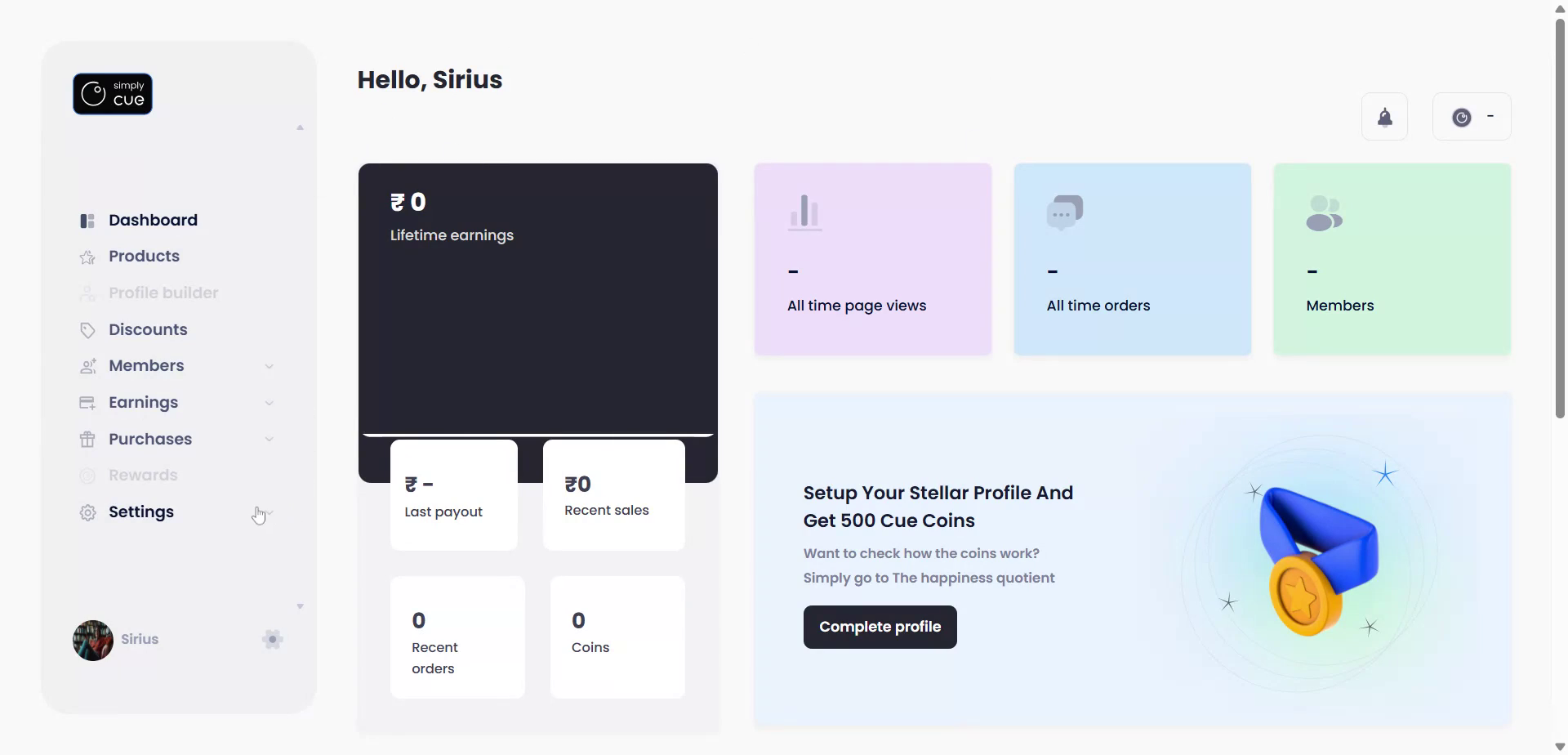
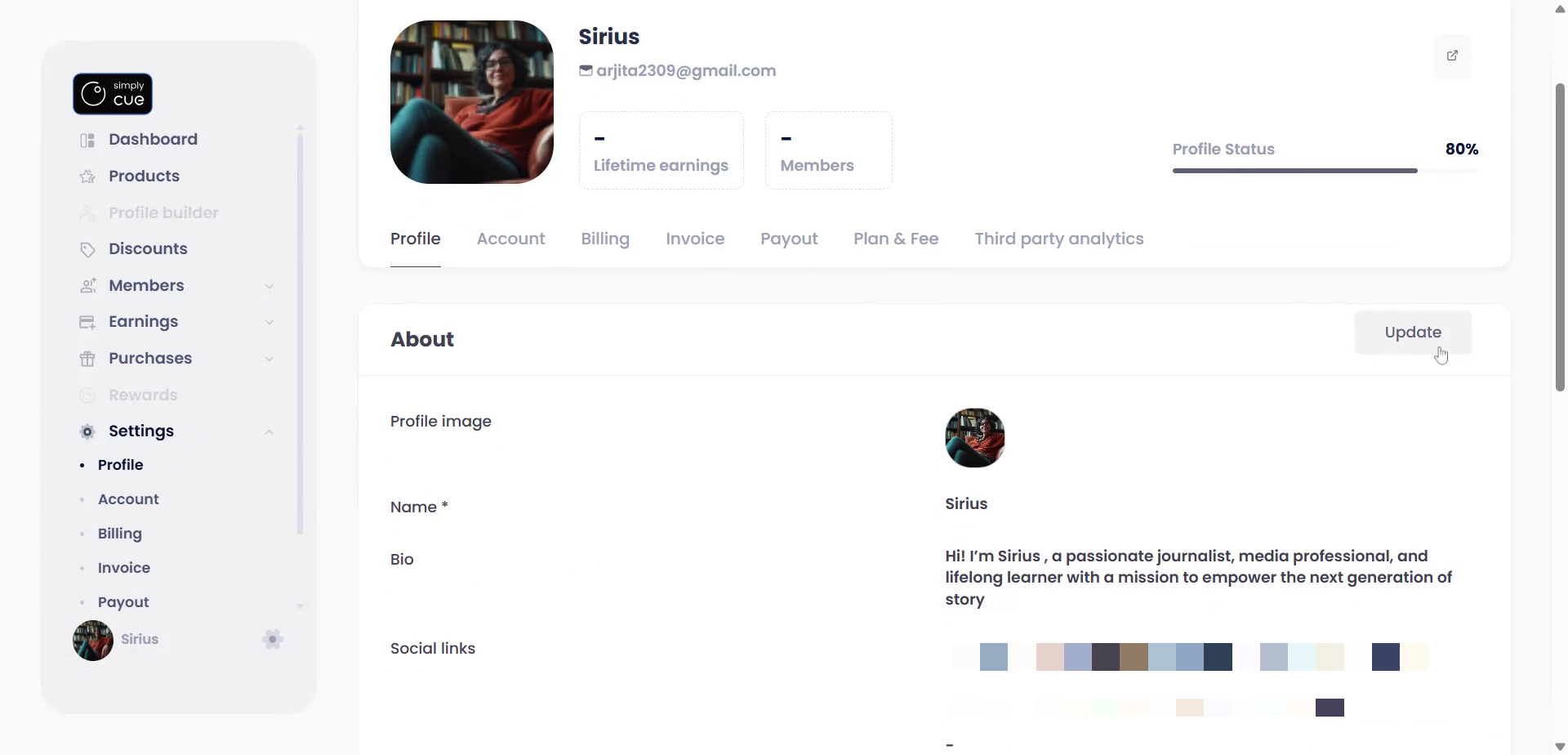
- Click on Settings from the left menu
- Then select Profile to begin customizing
Step 2: Fill in Your Profile Details
In the About tab, click Update to get started.
Here’s what you can add:
- Your Profile Picture
- Your name or brand name
- A Bio that reflects your journey, skills, and purpose
- Social Media Links for greater connectivity
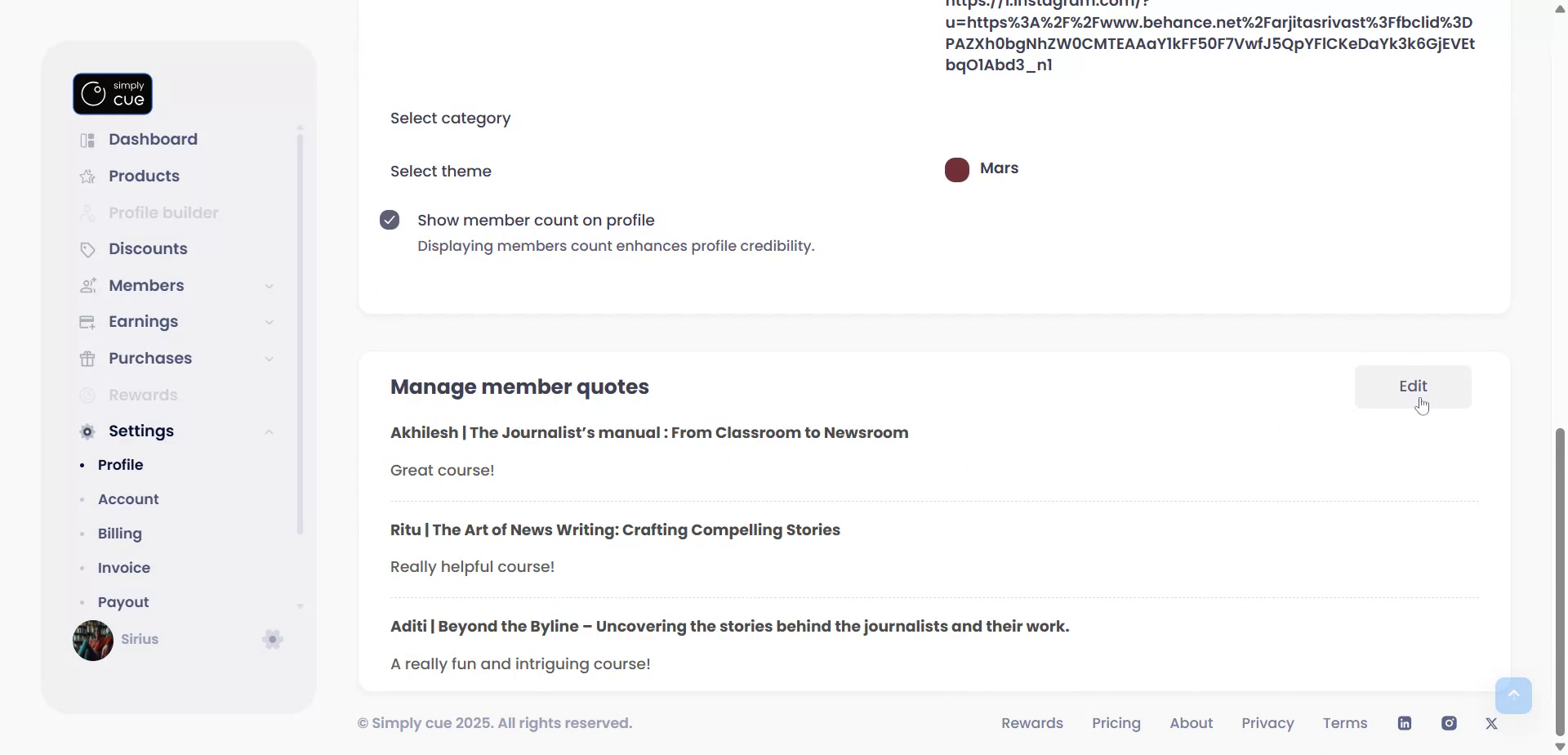
- Choose a Category like Career & Academics, Lifestyle and more
- Customize the Theme to match your brand vibe
Step 3: Add Member Quotes (Testimonials)
Scroll down to the Member Quotes section to showcase the kind words you have received from your community.
Here’s how to add them:
- Click Edit under the Member Quotes section
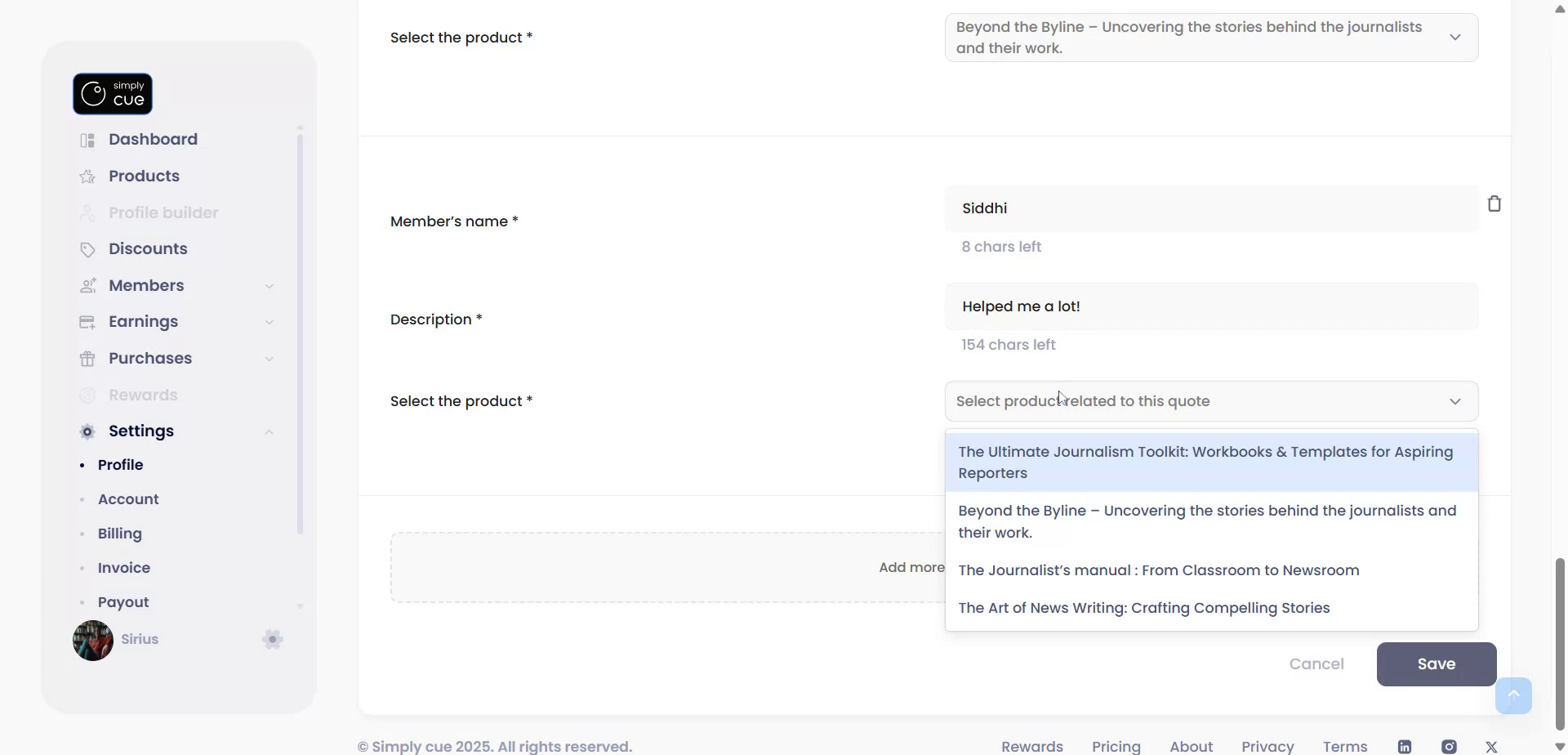
- Hit Add More
- Enter the Name of the member
- Paste in their Feedback/Testimonial
- Link it to the related Product or Course
- Click Save
Once added:
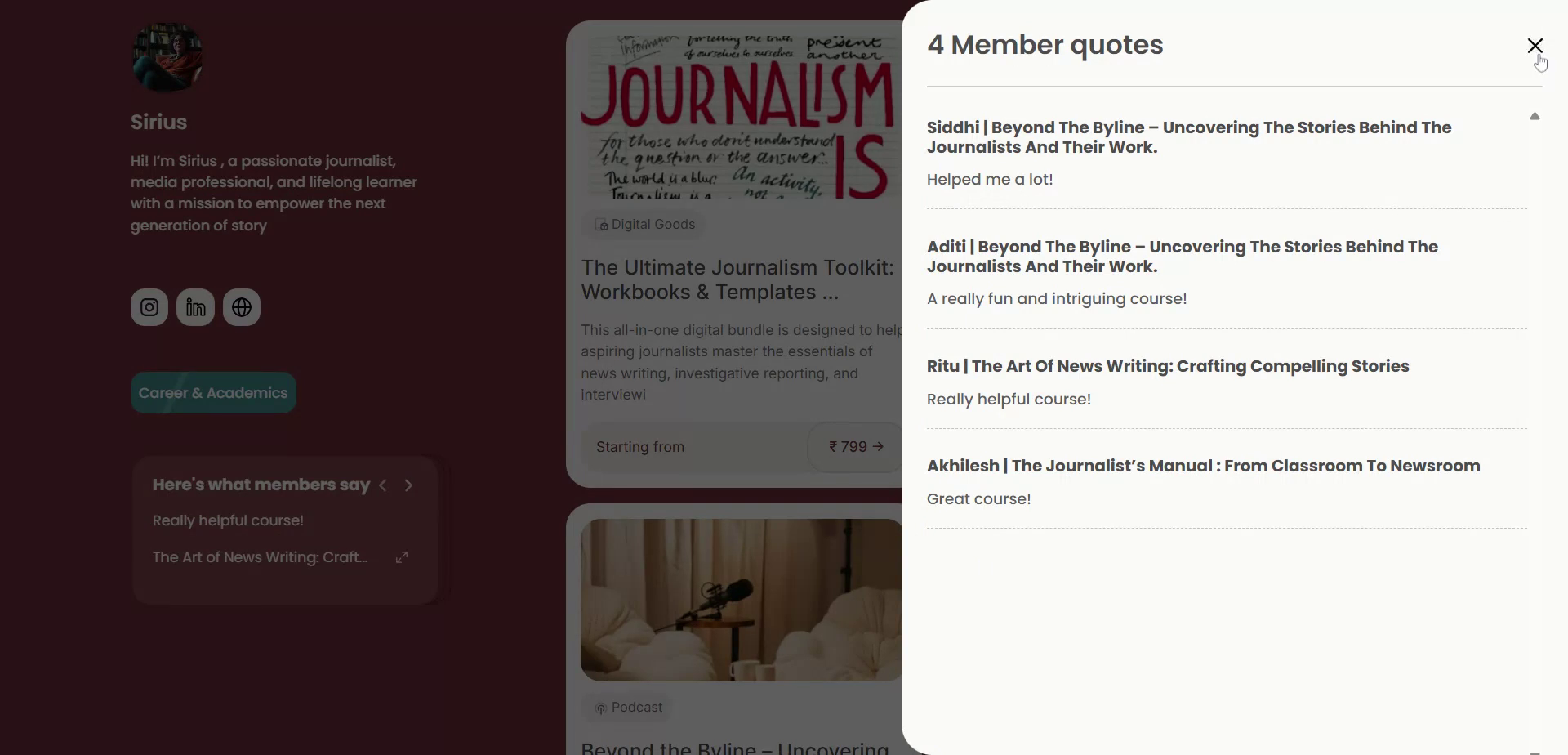
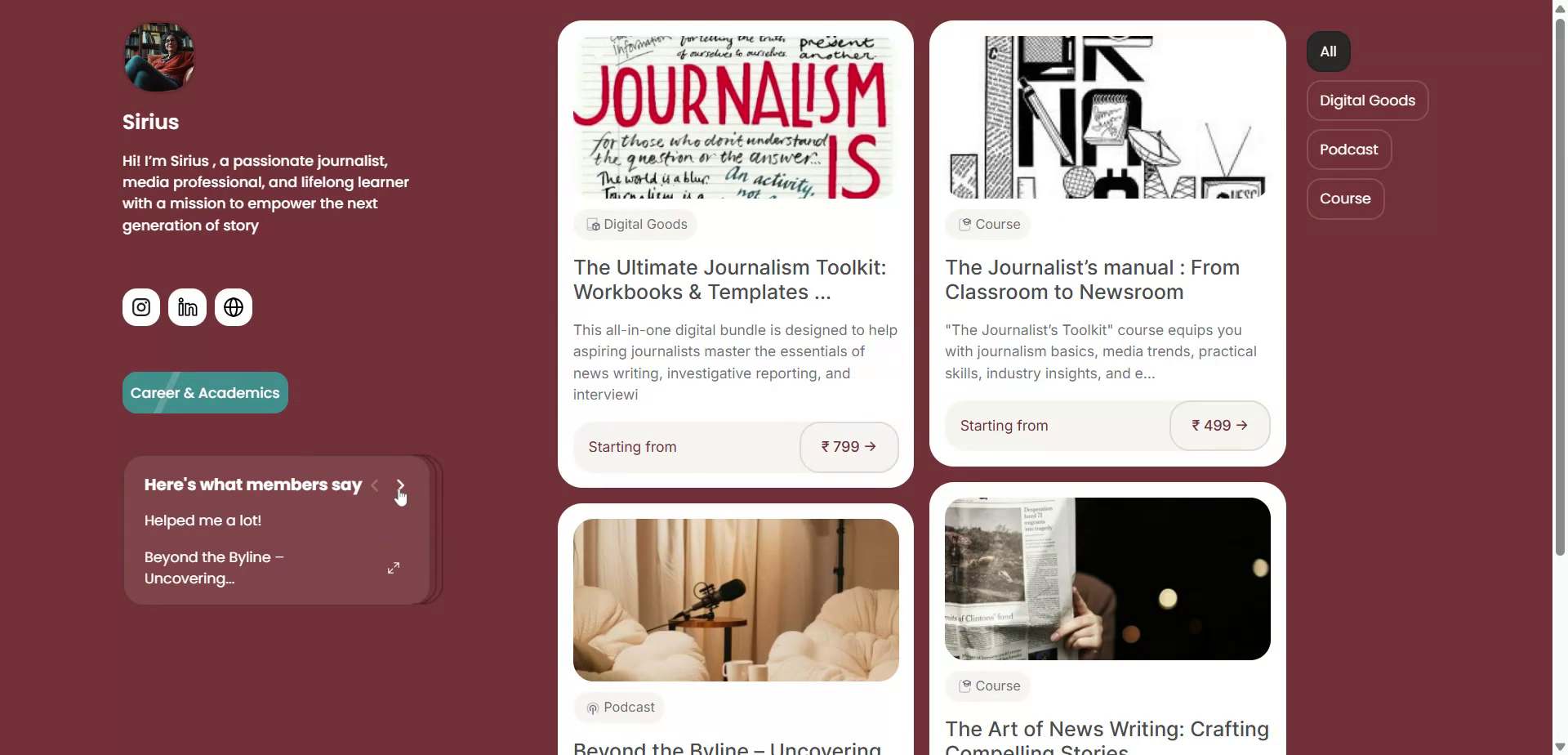
- Member quotes will now appear on your public profile
- Visitors can expand quotes to read them fully
- Your Product Listings will also be visible on the right side, nicely categorized
Step 4: Go ahead and review Your Public Profile
You are all done! Now save all the changes and go ahead and review your profile. We recommend you update your profile regularly to stay ahead.